
Introduction
The Test Connection feature allows you to test any of your Additional SMTP Connections directly from the Test Mail page. This guide will walk you through the steps to send a test email using your added Additional Connections.
To begin make sure you have installed and activated the GOSMTP plugin.
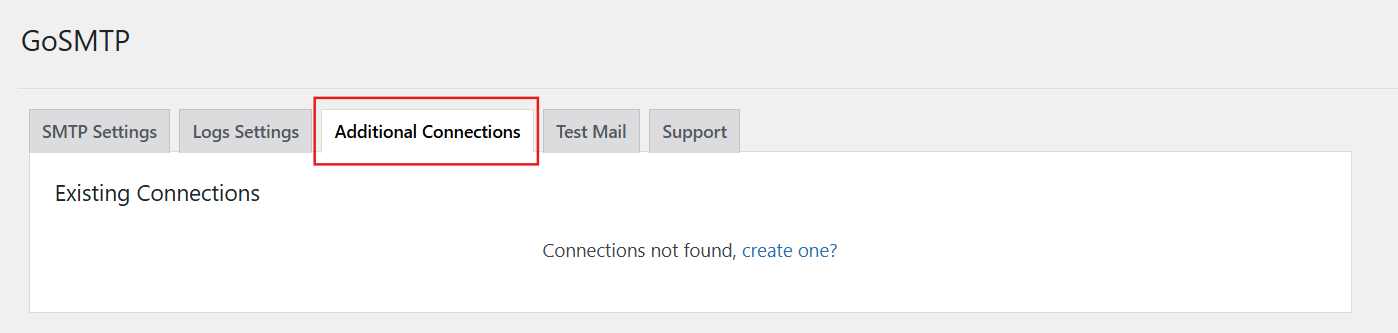
Navigate to "GOSMTP » Additional Connections" in your WordPress dashboard. Click on create one to create an Additional Connection.
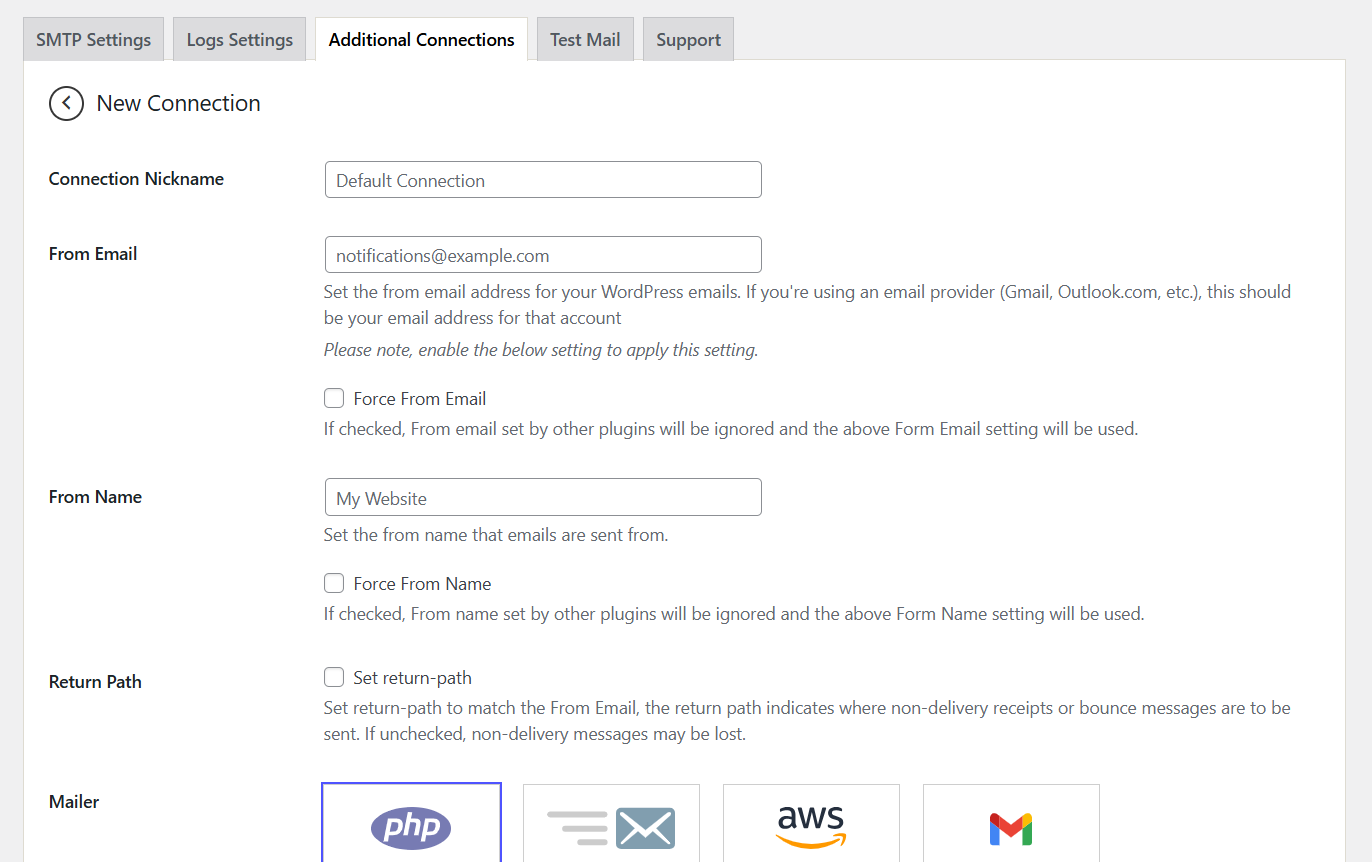
Enter the necessary details, including the Connection Nickname, From Email, and authentication information. Click on Save Changes to save the the connection.
Once created, the Additional Connection will appear in the Additional Connections Tab
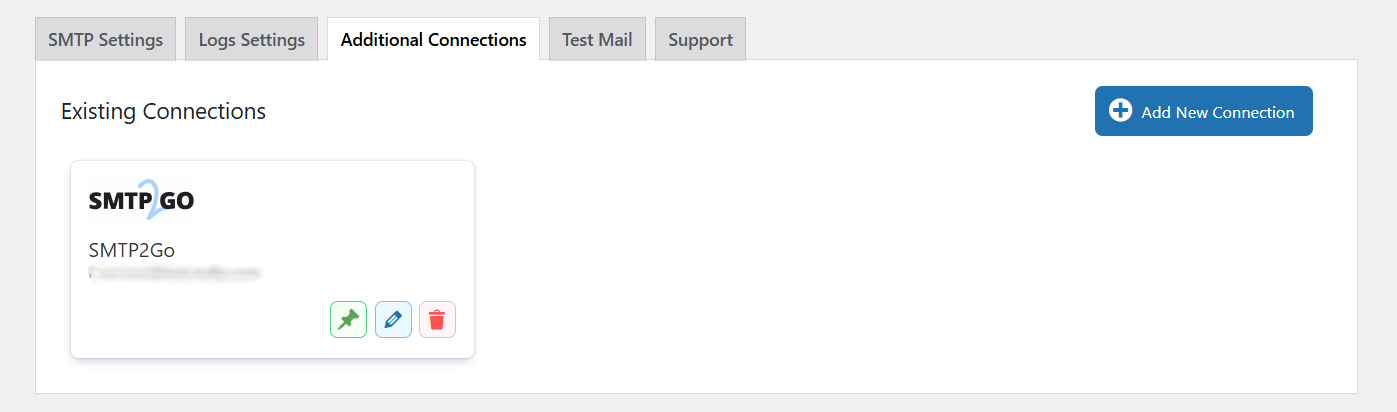
Once your additional connection is created, it will be available for testing.

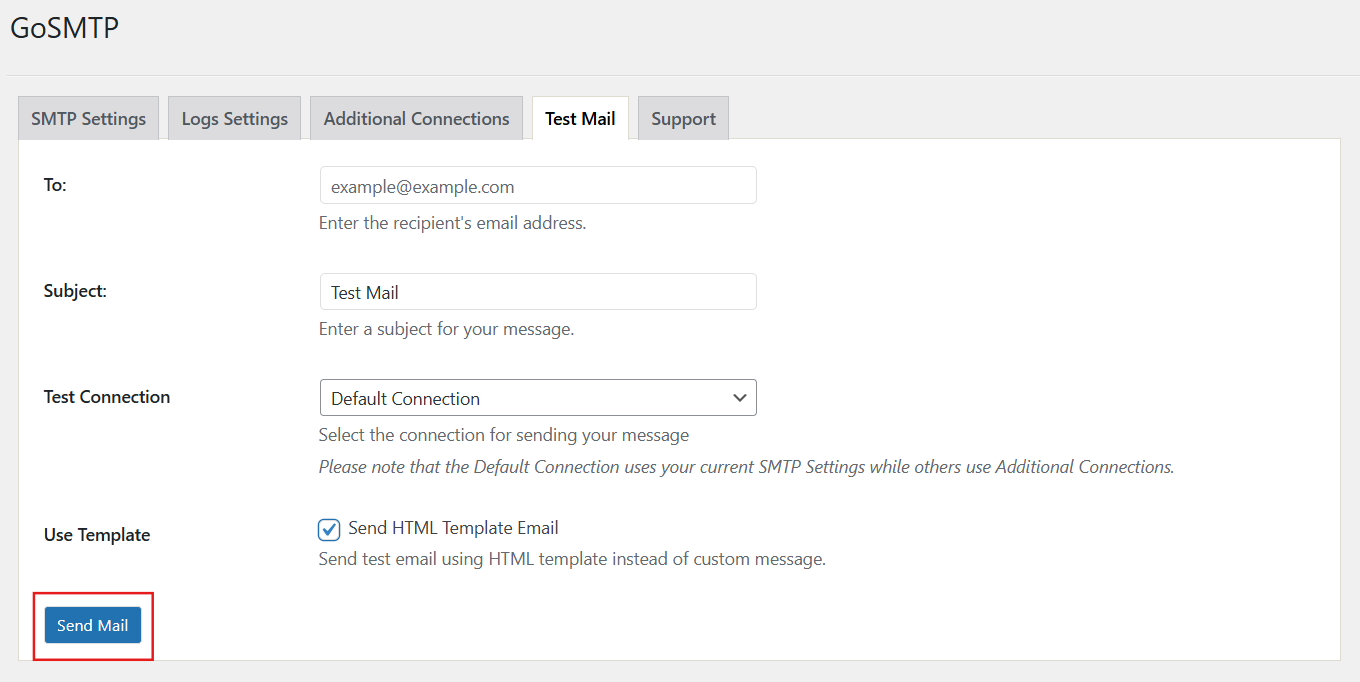
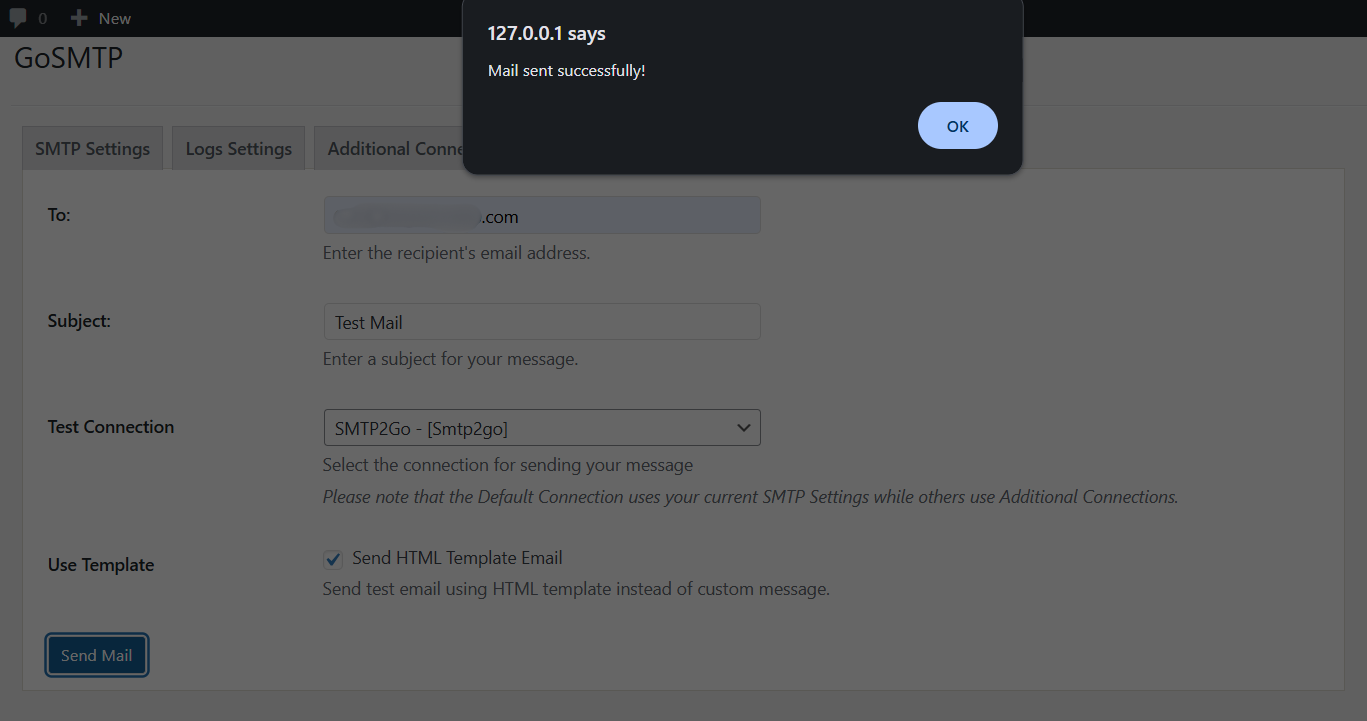
Now, on the Test Mail page, you'll need to provide the following information to send a test email using Test Connection:
To: Enter the recipient's email address in the provided field.
Subject/Message: If desired, you can customize the subject and content of the test email. This step is optional but can be helpful for specific testing scenarios.
Test Connection: Now you'll see a Test Connection Selector with multiple options:
Default Connection – Your current SMTP Settings.
Additional Connections – Any connections you created under the Additional Connections tab.
Select the created Additional Connection to test.
Use Template: You can use this option to send your message using a pre-designed HTML template instead of a custom message. This step is optional.
Click the "Send Email" button to initiate the test email sending process using Additional Connection.
To: Enter the recipient's email address in the provided field.
Subject/Message: If desired, you can customize the subject and content of the test email. This step is optional but can be helpful for specific testing scenarios.
Test Connection: Now you'll see a Test Connection Selector with multiple options:
Default Connection – Your current SMTP Settings.
Additional Connections – Any connections you created under the Additional Connections tab.
Select the created Additional Connection to test.
Use Template: You can use this option to send your message using a pre-designed HTML template instead of a custom message. This step is optional.
Click the "Send Email" button to initiate the test email sending process using Additional Connection.
After successfully sending a test email using the Test Connection feature, you’ll receive a confirmation message indicating that the selected test connection is working correctly. This confirms that the additional connection is properly configured and can send emails without issues. It ensures that the connection you are testing is fully functional and ready to use.
If you encounter any issues or receive an error message, double-check your Additional Connection settings and email configuration for any errors.
If you encounter any issues or receive an error message, double-check your Additional Connection settings and email configuration for any errors.
By following these steps, you can easily test any additional connections in GoSMTP to verify that it has been configured correctly. Confirming that the connection works before using it in the main settings or as a backup connection ensures reliability and gives you confidence that your GoSMTP setup is functioning as expected.