Introduction
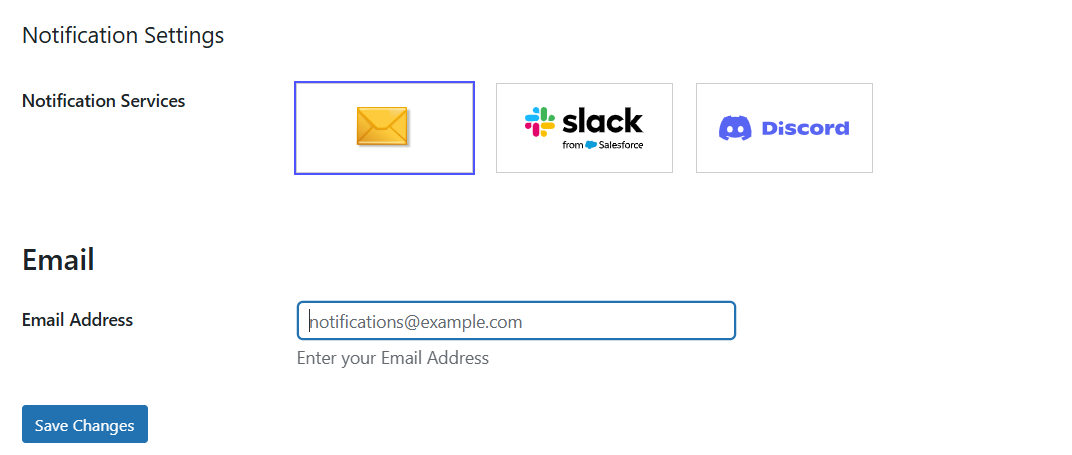
Once you choose Email as the notification service in GoSMTP settings, you'll find a field to add your email address. This connects GoSMTP with your email, enabling you to receive notifications on provided email whenever a email delivery failure occurs.
This tutorial will guide you through the process of setting up GoSMTP Notification Service with Email.
To begin, make sure you have installed and activated the GoSMTP plugin.
After installing GoSMTP, you can easily configure the plugin's settings. Just go to GoSMTP » Settings in your WordPress dashboard and navigate to the Notifications tab.
After installing GoSMTP, you can easily configure the plugin's settings. Just go to GoSMTP » Settings in your WordPress dashboard and navigate to the Notifications tab.

After selecting Email as your mailer in GoSMTP Notification Settings, you'll see a field to enter your email address. Enter your email address to receive an immediate alert to your inbox whenever a delivery failure occurs.