
Introduction
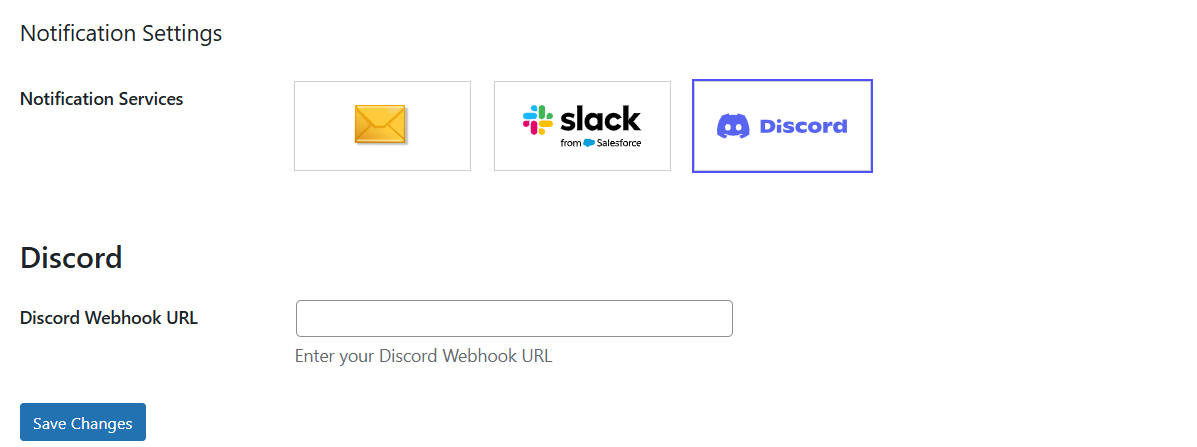
Once you choose Discord as the notification service in GoSMTP settings, you'll find a field to add Discord Webhook URL. Generate the Webhook URL in your Discord account and paste it there. This connects GoSMTP with Discord, enabling you to receive notifications on Discord whenever a email delivery failure occurs.
After installing GoSMTP, you can easily configure the plugin's settings. Just go to GoSMTP » Settings in your WordPress dashboard and navigate to the Notifications tab.

Basic configuration
After selecting Discord as your notification service in GoSMTP Notification Settings, you'll see a field to enter your Discord Webhook URL.
Generate this Webhook URL from your Discord account and paste it into the field to connect GoSMTP with Discord, and receive an immediate alert to your inbox whenever a delivery failure occurs.
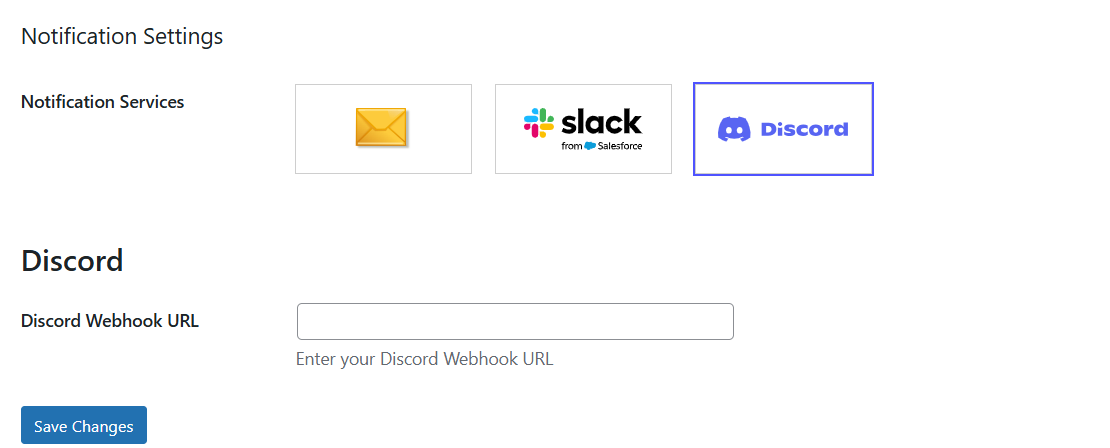
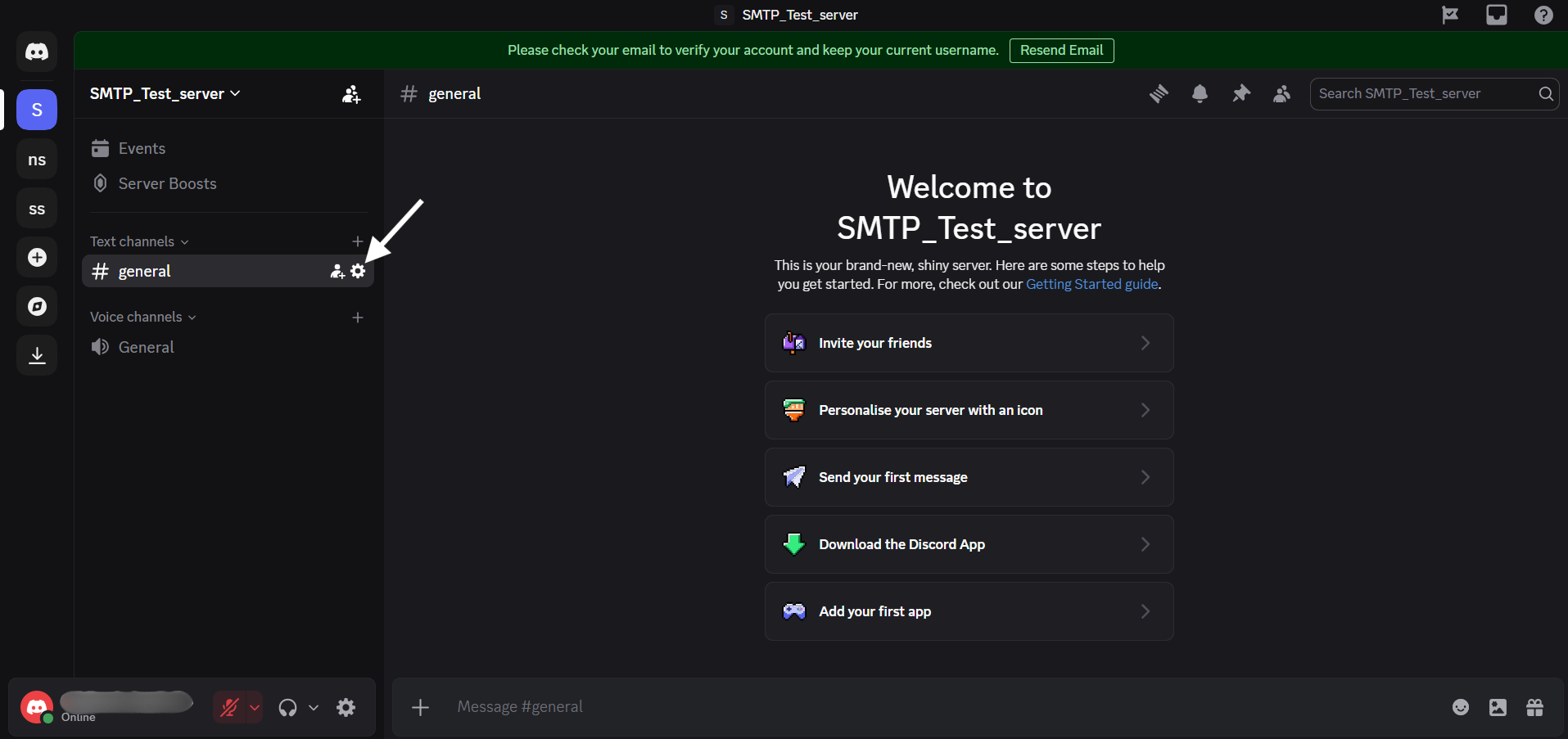
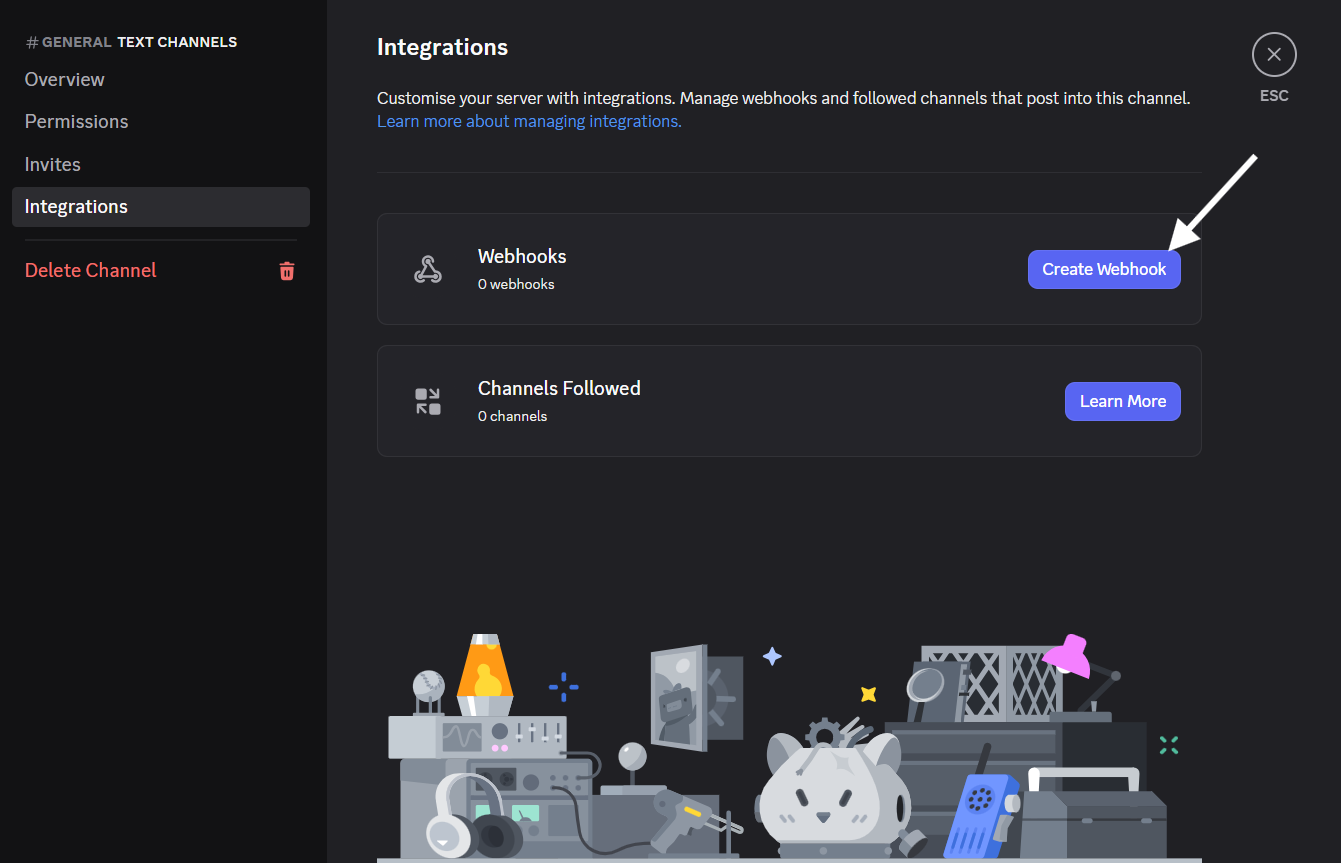
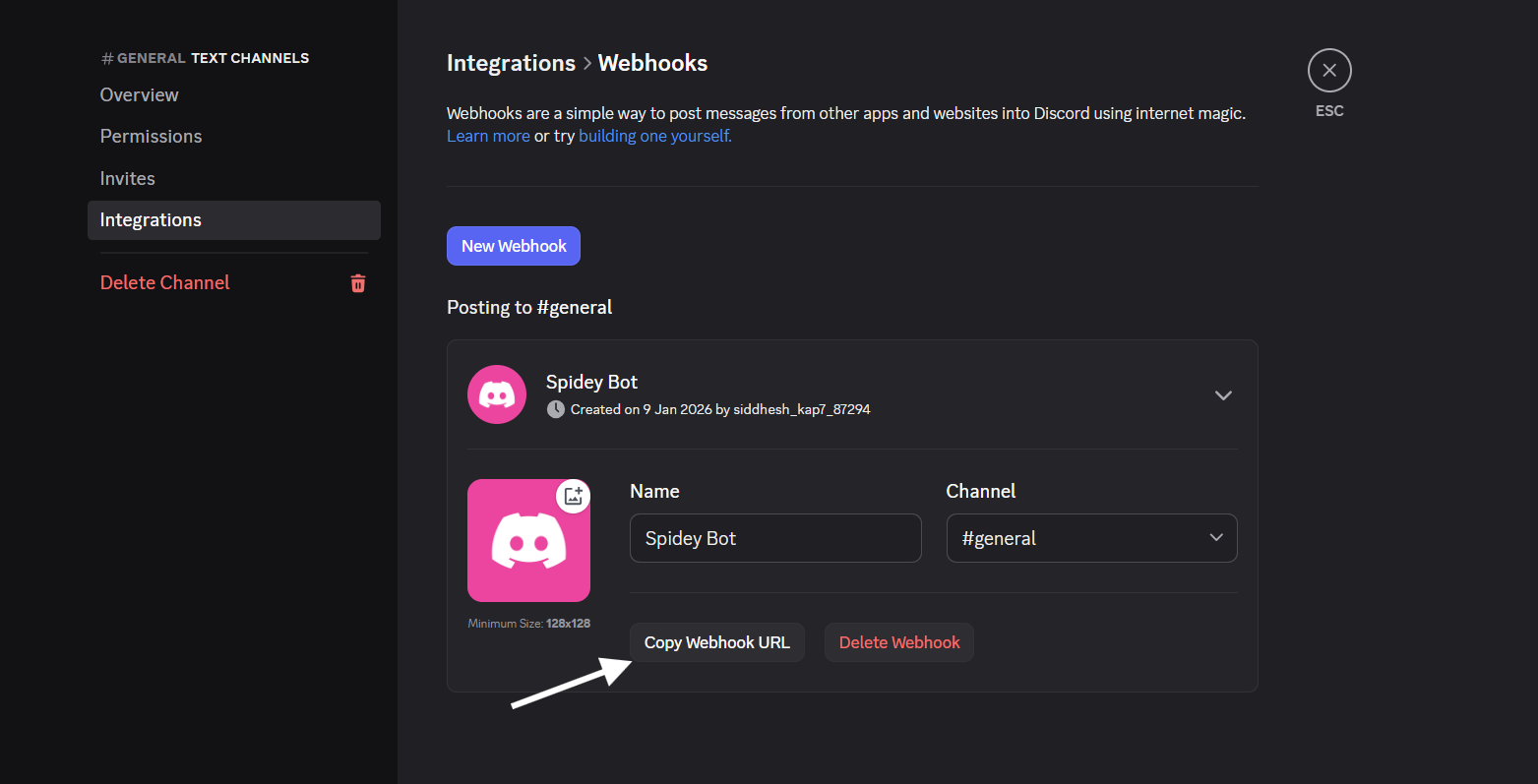
Notification Service configuration
Freqently Asked Question
If your primary email server is down, an email alert about the failure may never reach you. Discord uses a separate infrastructure (webhooks), ensuring you receive the alert even when your site’s email system is completely broken.
GoSMTP uses Discord Webhooks. You must create a webhook in your Discord server settings, copy the unique URL provided by Discord, and paste it into the GoSMTP Notification settings under the "Discord" service tab.
No. Unlike some integrations that require complex bot tokens, GoSMTP works with simple Webhooks. This makes the setup faster and more secure since you don't have to manage bot permissions.