
Introduction
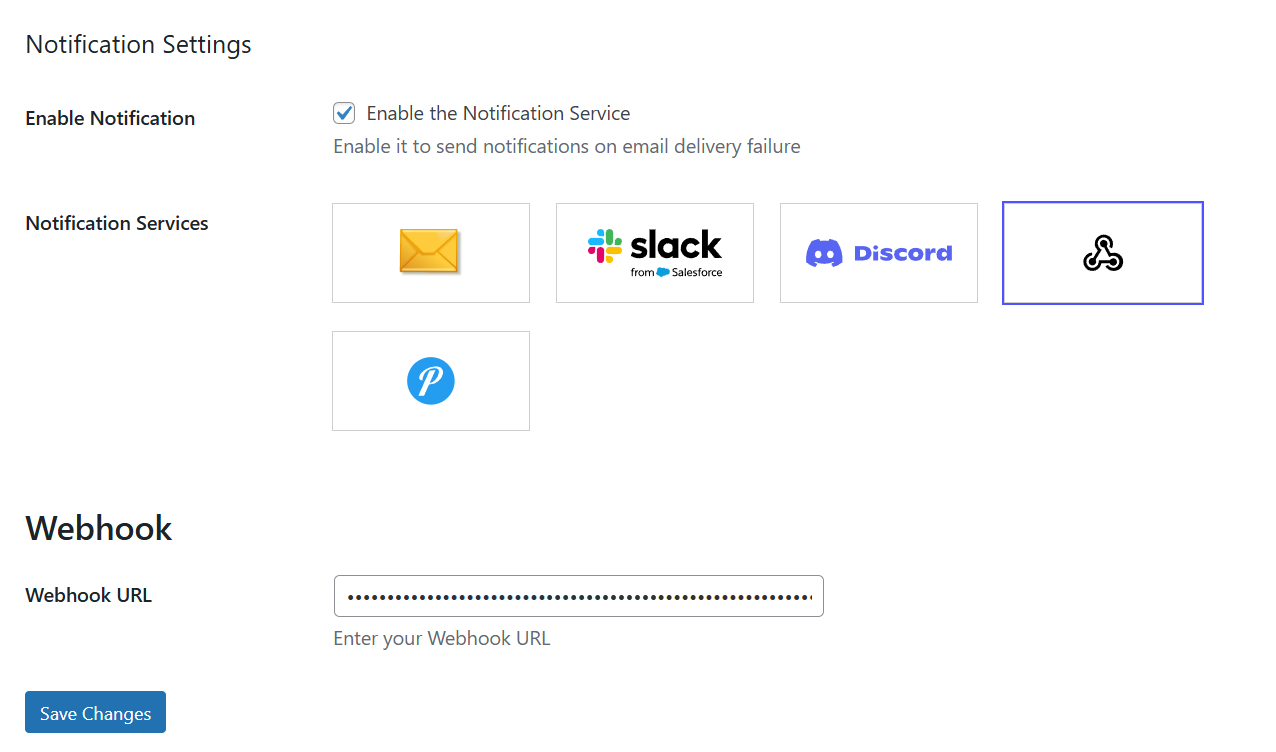
Once you choose Webhook as the notification service in GoSMTP settings, you'll find a field to add your Webhook URL. This connects GoSMTP with your preferred application (like Slack etc), enabling you to receive real-time HTTP POST notifications whenever an email delivery failure occurs.
This tutorial will guide you through the process of setting up GoSMTP Notification Service with Webhook.
To begin, make sure you have installed and activated the GoSMTP plugin.
After installing GoSMTP, you can easily configure the plugin's settings. Just go to GoSMTP » Settings in your WordPress dashboard and navigate to the Notifications tab.
After installing GoSMTP, you can easily configure the plugin's settings. Just go to GoSMTP » Settings in your WordPress dashboard and navigate to the Notifications tab.

After selecting Webhook in GoSMTP Notification Settings, copy the Webhook URL from the service you’d like to utilize and place it in the Webhook URL field.
Freqently Asked Question
If your primary email server is down, an email alert about the failure may never reach you. Webhooks operate on a completely independent infrastructure, ensuring you receive instant alerts on your preferred platform like Slack even if your site’s email system is completely broken.