Introduction
For security reasons, we redact passwords and direct login links shared via email. Please follow this step-by-step guide below, which outlines the safest and recommended method to grant our support staff temporary access. This ensures our team can effectively troubleshoot your issue while keeping your account fully secure.
Share access to GoSMTP Support Staff
Giving access when creating a new ticket
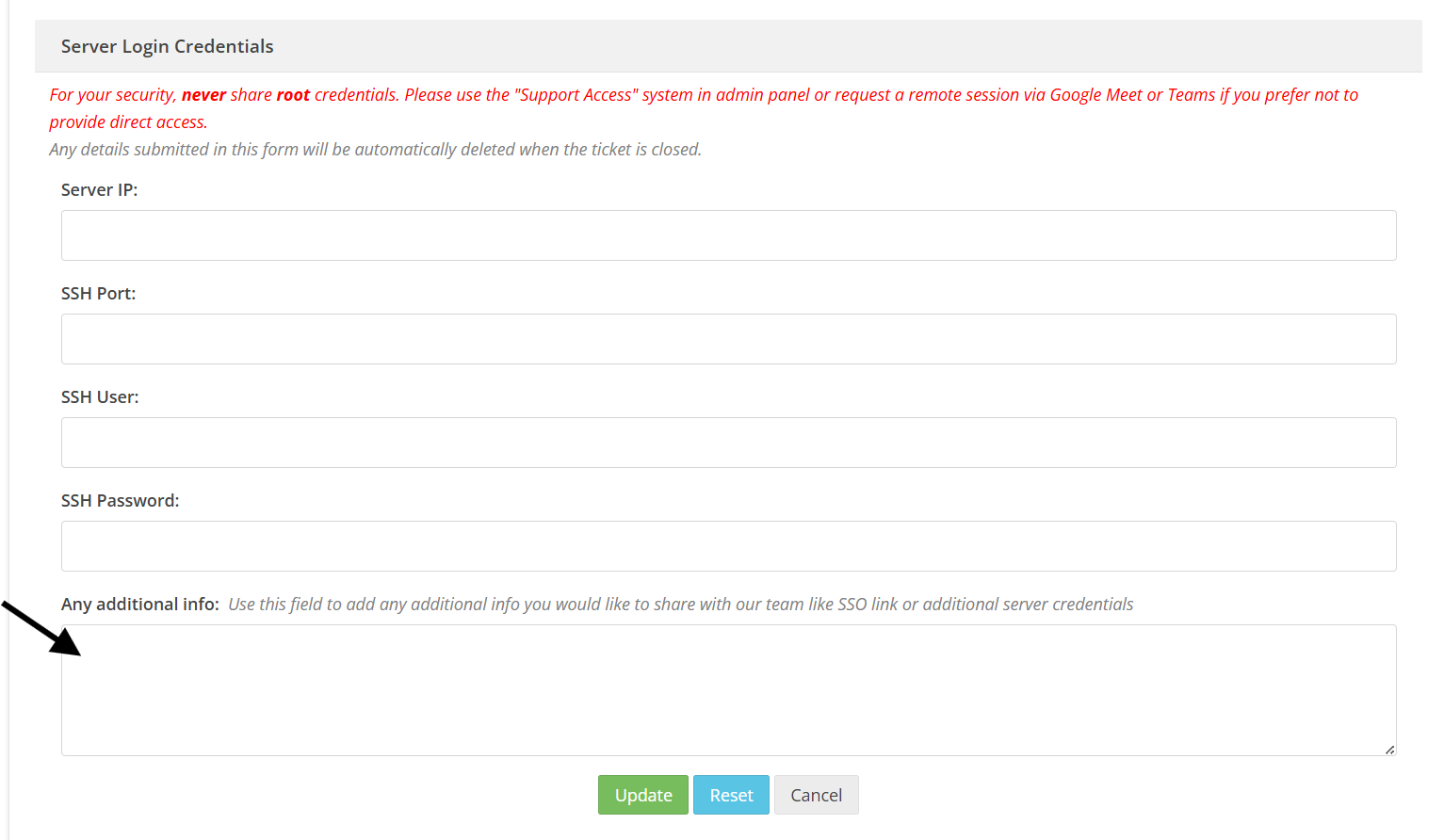
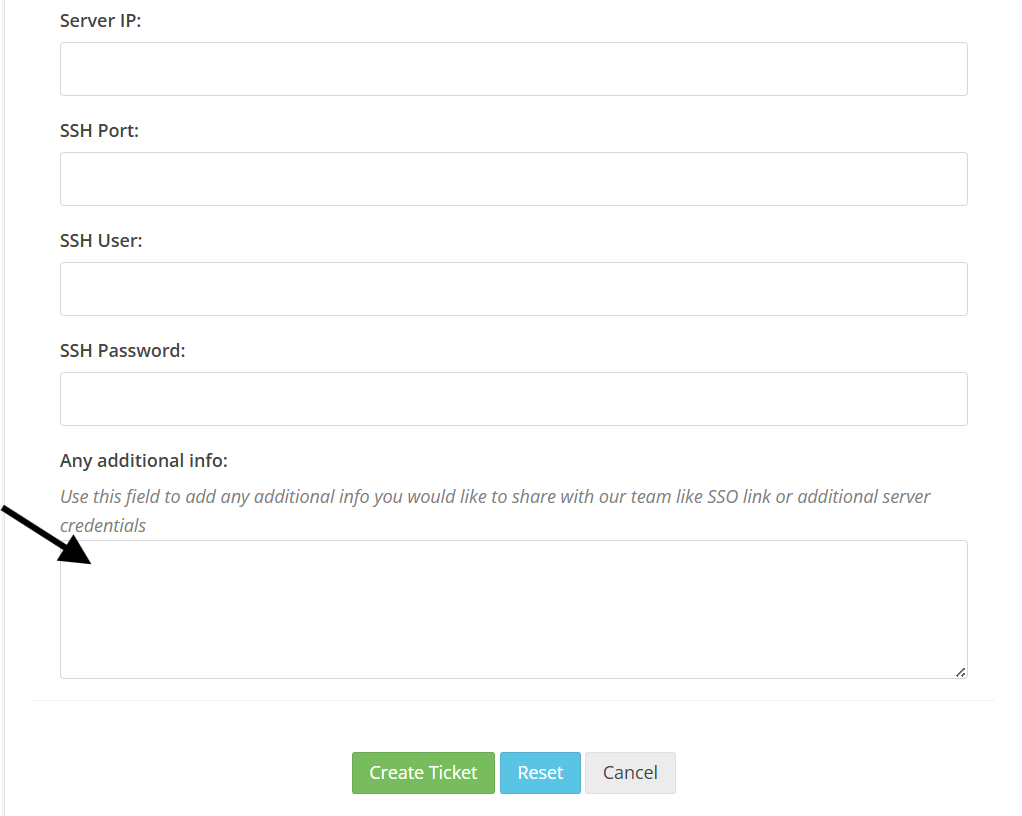
When you are filling out the form to open a new support ticket, scroll down to section named Server Login Credentials. Inside that section look for the field named Any additional info.
You can safely enter your website login URL, username, and password directly into this field. This information is securely stored and only visible to our assigned support staff.
You can safely enter your website login URL, username, and password directly into this field. This information is securely stored and only visible to our assigned support staff.
Giving access after a ticket is already created
If you have already created a ticket and need to provide access later, simply open your existing ticket and click the Edit button.
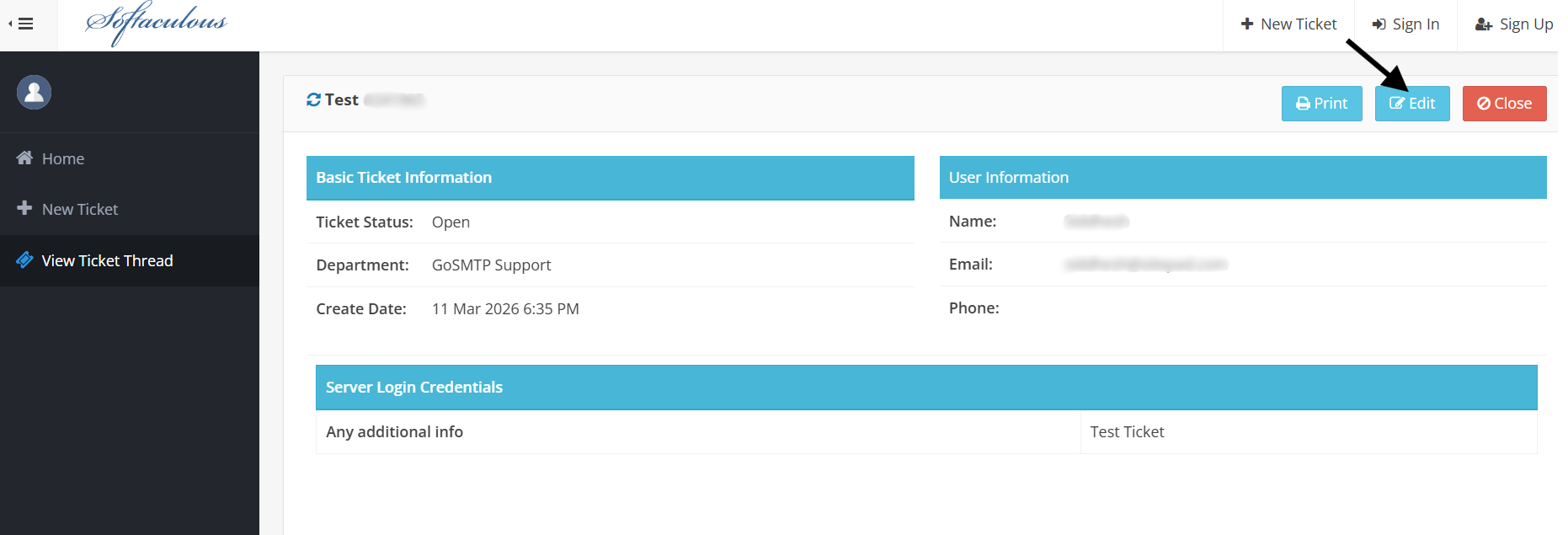
Locate section named Server Login Credentials. Inside that section look for the field named Any additional info and add your website login URL, username, and password there. Update the ticket to securely share your details with our team.